Compounds
A chemical compounds database is available to all users in all teams, it is a common database for the instance, storing references of all existing compounds. Note that the visibility cannot be changed. Compounds are always visible to everyone with access to the instance. You can access it from the Tools menu.
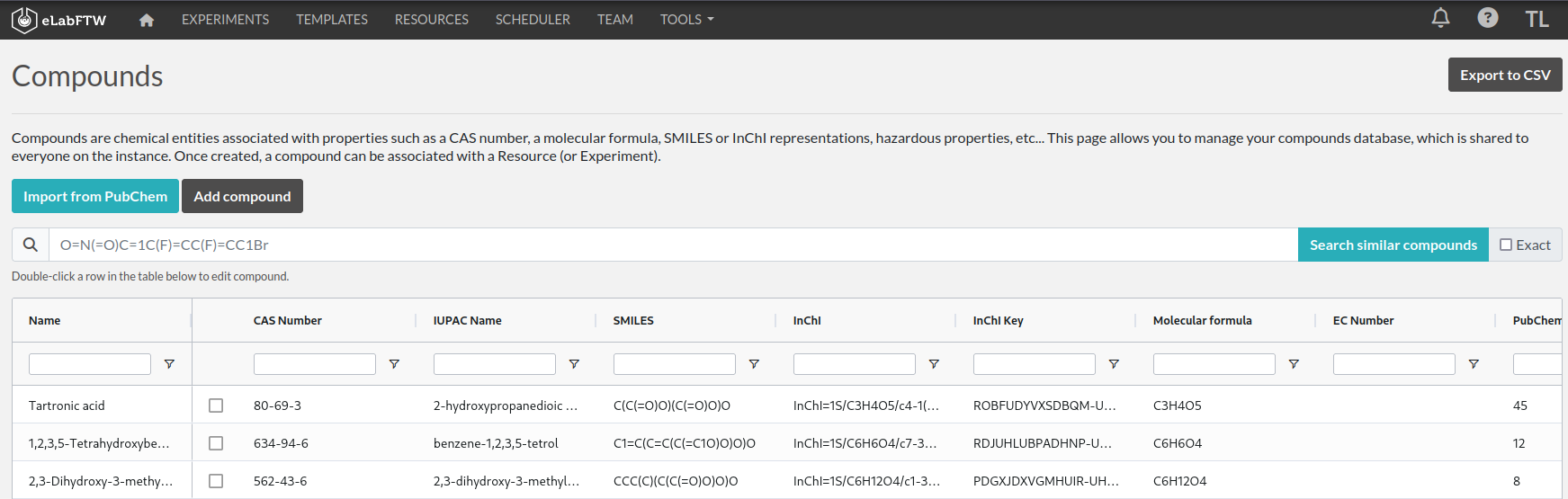
Compounds have specific properties such as a CAS number or a SMILES/InChI representation. They can also be associated with safety risks. Once a compound is present in the local eLabFTW database, it can be referenced (linked) from an Experiment or a Resource.
Importing a compound from PubChem
Compounds can be imported from PubChem. From the Compounds page, click the "Import from PubChem" button, you are presented with a modal window:
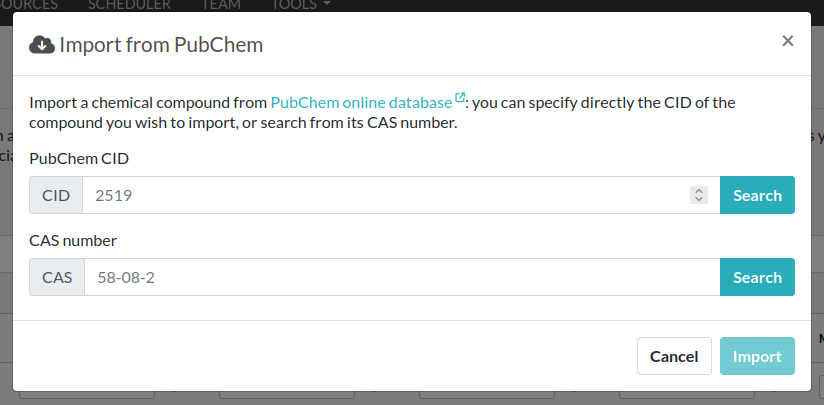
You can specify a PubChem CID (a unique identifier for all compounds present in PubChem), or a CAS number (a unique identifier present for most compounds). Input the number (CID or CAS) and click Search. A preview of the data is displayed below. If that is the correct compound, click Import.
Your newly imported compound is now visible in the table listing them all. Double-click it to further edit its properties.
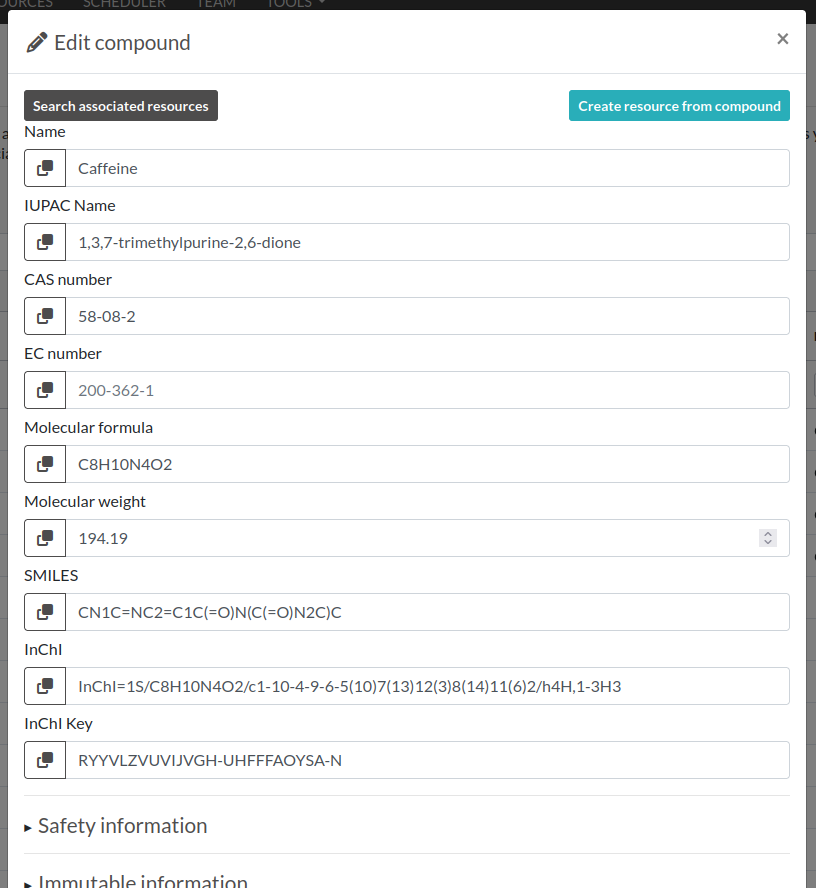
From this window, you can edit all the properties of the compound. Only the "Name" is a mandatory field, all other fields are optional.
The safety section allows you to define health hazards associated with that compound, and also if it is a controlled substance such as a drug precursor, or nanomaterials.
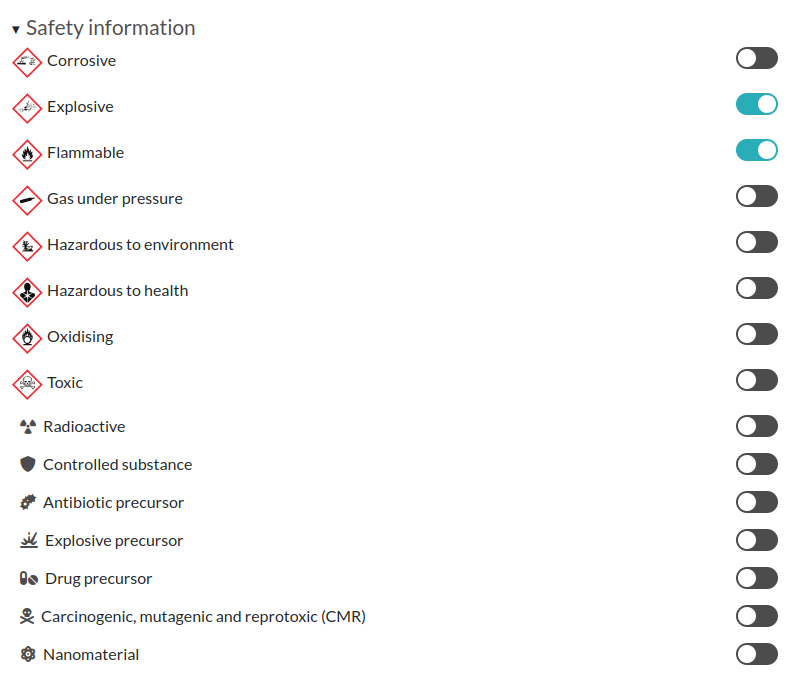
Now that your compound is correctly created, you can click the "Create resource from compound" button on top of this modal window to create a Resource linked with that compound. That resource can be seen as an instantiation of this abstract compound that is present in this common, shared compound database.
With a Resource, you can set permissions and also add more information, attach files, define inventory, and link to other Resources or Experiments.
A Resource (or an Experiment) can be linked to one or several existing Compound, which allows you to create a Resource representing a mixture of compounds.
Creating a compound manually
Maybe you've just created an never-seen before chemical compound, which means you cannot import it from PubChem. In this case, click the "Add compound" button to manually add a compound. Be aware, as mentioned above, the new compound will be visible by all users of the instance. In case you want to keep it confidential, do not add it.
Importing compounds manually
Look at the Import compounds through CLI section to learn how to import your compounds from a spreadsheet file or through the API.
Fingerprints
When you add a compound where the SMILES representation is defined, and if the instance is configured to use the Fingerprinting service, a fingerprint of the compound will be stored in the database, allowing the search for substructures.
Chemical structure editor
Since version 5.2, a chemical structure editor is present in the Tools menu. It allows one to draw molecules and perform operation on them such as searching the compounds database for similar molecules, via a substructure search. This feature requires the compounds present in the common database to be associated with a fingerprint, which is the case if the fingerprinting service is active, and the compounds have a SMILES representation defined.
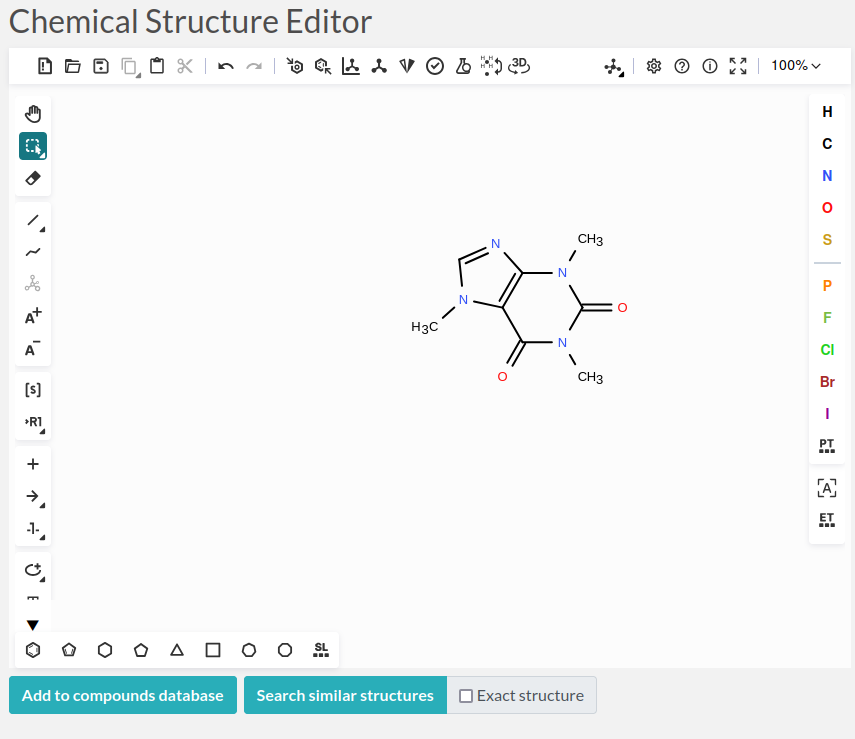
For detailed instructions, click the (?) icon at the top of the editor.