Traceability and auditability
eLabFTW features several mechanism for tracking changes in an auditable manner.
Timestamping
Timestamping an entry allows you to create a strong legal proof that this data was present at this point in time.
Trusted timestamps
This timestamping mechanism is the standardized protocol defined by RFC 3161, here is how it works:
- we first generate a JSON export of the entity, containing all the data relevant to that entry
- we pass it through a cryptographic hash function to get its fingerprint
- we request a timestamp token from the Time Stamping Authority (TSA)
- we store the JSON file along with the token in an immutable ZIP archive (visible if you display archived attachments of a timestamped entry)
A TSA is a trusted timestamping service that will be used to request a token. Several TSAs are already configured in eLabFTW:
- DFN.de (free academic service, default TSA)
- Universign (eIDAS qualified, paid service)
- Digicert (free)
- Sectigo (free)
- GlobalSign (free)
- Evidency (eIDAS qualified, requires account)
- Custom: you can define your own service if necessary
When you click this button, a timestamp archive is created. This is a signed, legally binding snapshot of the entry that is stored alongside the attached files in an immutable archive. Timestamping an entry involves generating a full JSON export of the entry and creating a cryptographic hash of that data. This hash is then sent to a trusted third party: the TimeStamping Authority (TSA).
The TSA acknowledges the existence of the data and sends back a signed token, which serves as proof that the data existed at that specific time. This process follows the RFC 3161 standard for Trusted Timestamping.
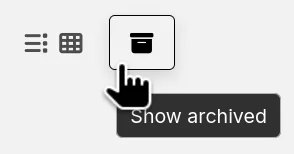
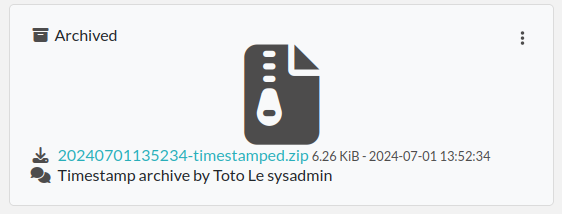
The timestamped data and corresponding token are then saved in the "Attached Files" section of the entry as a zip file. This file is initially in an "Archived" state, meaning it is hidden from view by default. To view archived files, click the Show Archived button on the right side of the "Uploaded Files" section in edit mode:
This timestamp archive is immutable and cannot be modified or deleted.
Verifying the timestamp
To verify locally the validity of the timestamp, you can use openssl with a command similar to:
openssl ts -verify -CAfile /etc/ssl/cert.pem -data /path/to/X-timestamped.json -in /path/to/X-timestamped.asn1 -text
If it was signed with a certificate trusted on your system, it should output "Verification: OK". You can also check the token content directly with:
openssl ts -reply -in /path/to/X-timestamped.asn1 -text
The output should look like:
Using configuration from /etc/ssl/openssl.cnf
Status info:
Status: Granted.
Status description: Operation Okay
Failure info: unspecified

TST info:
Version: 1
Policy OID: 1.3.6.1.4.1.22177.300.22.1
Hash Algorithm: sha256
Message data:
    0000 - 5a 58 7b 86 c3 a6 79 27-35 b8 4d 57 bc 5a 7e 80   ZX{...y'5.MW.Z~.
    0010 - 52 89 92 60 0b 8d 03 d4-f2 9e 4a 4c 6d ec 91 a4   R..`......JLm...
Serial number: 0xCDAB07382DF7B1BBE0CC970E93A7625B63F4DB7A
Time stamp: Jul 16 23:07:34 2025 GMT
Accuracy: unspecified
Ordering: no
Nonce: unspecified
TSA: unspecified
Extensions:
The "Time stamp" line gives you the timestamp time. The "Hash Algorithm" and "Message data" should correspond to the digest of the data file (the .json). Compare it with: openssl dgst -sha256 /path/to/X-timestamped.json
To verify a Universign/Signaturit timestamp, use this script instead: Verify Universign timestamp script.
Blockchain timestamps
This timestamping method uses the Bloxberg consortium blockchain to timestamp your data. Here is how it works:
- we first generate a JSON export of the entity, containing all the data relevant to that entry
- we pass it through a cryptographic hash function to get its fingerprint
- we add it to the Ethereum-based blockchain
- we store the JSON file along with a PDF certifying our data in an immutable ZIP archive (visible if you display archived attachments of a timestamped entry)
Electronic signatures
Signatures are important in many contexts, such as scientific research.
A signature can prove that this particular data has been approved by this particular human. It is a different concept than timestamping, which proves that this particular data existed at this particular time.
eLabFTW allows you to have three different types of signatures.
Handwritten signatures
In your Settings page, check the setting: "Enable french style signature block in PDF Export", from the "PDF Configuration" section of the "General" tab. Now, when you generate a PDF, there will be a dedicated section at the bottom to allow signatures of the author and an observer.
Simple signatures
In an authenticated application such as eLabFTW, where all Users are identified and vetted, a signature can be clicking a checkbox, leaving a comment, or performing an action such as locking an Experiment.
The level of trust you can associate to this action is reinforced by using multi-factor authentication.
Advanced cryptographic signatures
Since version 5.1, an advanced signature mechanism exists for eLabFTW. It uses the highly secure Ed25519 public-key signature system and is compatible with minisign.
How does it work?
At a high level
Each User gets a key pair composed of a private and public key. The private key is protected by a passphrase. In order to sign a document, the User provides their passphrase, and the document is cryptographically signed. The signature file is stored alongside the public key and the document being signed. This "Signature archive" also contains a small shell script to verify the signature with minisign.
Before the signature, a meaning is selected (Review, Approval, etc...). The signature involves several actions:
- the cryptographic signature file is created: it signs the data
- this file is stored in an archived zip file (as an attachment to the entry)
- an immutable comment is created, to indicate that a signature occurred
If one bit of the document is modified, the signature won't be valid anymore. This verification can be done at any point in time and doesn't require access to any external service.
The important aspect is the level of trust you can have on the association of a key pair and a particular human. If you can verify that a particular human owns a given private key, then the signature verification done with its public part can be trusted fully.
Low level overview
This section is for cryptonerds!
We use Ed25519 to create a keypair. We also generate 8 bytes of random bits to have the key id, along with a salt that is SODIUM_CRYPTO_PWHASH_SCRYPTSALSA208SHA256_SALTBYTES long.
We also make a checksum using Blake2 of the signature algorithm, the key id, and the private key.
The salt is combined to the passphrase into a Key Derivation Function (KDF): this allows us to derive a key from that passphrase, and we will use it to XOR the key id, the private key, and the checksum. The Key Derivation Function (KDF) is using scrypt (sodium_crypto_pwhash_scryptsalsa208sha256).
To save this into a human readable format, the private key is serialized into the minisign format::
    untrusted comment: <arbitrary text>
    base64(<signature_algorithm> || <kdf_algorithm> || <cksum_algorithm> ||
           <kdf_salt> || <kdf_opslimit> || <kdf_memlimit> || <keynum_sk>)
And the public key::
    untrusted comment: <arbitrary text>
    base64(<signature_algorithm> || <key_id> || <public_key>)
The private and public keys are stored under this form in the MySQL database, attached to a particular User.
For signature, we extract the private key thanks to the provided passphrase and create a detached signature of the hash of the message (the message being a full json export of en entry here). This is the pre-hashed version of Ed25519: Ed25519ph (see RFC8032 Section 5.1).
We add a trusted comment to the signature data. This comment is trusted because we can verify it with its signature. It is a JSON string with metadata about the signature (who, when, why). A signature file can look like this::
    untrusted comment: <arbitrary text>
    base64(<signature_algorithm> || <key_id> || <signature>)
    trusted_comment: <arbitrary text>
    base64(<global_signature>)
A real-world example:
    untrusted comment: elabftw/50100: signature from key f3690b6554b4f817
    RUTzaQtlVLT4F5C81w4VBNIodngF4Kna0RqfOTY3CGIB+6AlzsFeX2BPpm49HyIKVnZHHhUQ8C/osp/uTyhAo0WrCoASqm2d0w0=
    trusted comment: {"firstname":"Toto","lastname":"Le sysadmin","email":"toto@yopmail.com","created_at":"2024-03-18T00:48:39+01:00","site_url":"https:\/\/elab.local:3148","created_by":"eLabFTW 50100","meaning":"Approval"}
    LvN7bwKzaU3GwjJtEou1aZs2F4jeBJl5kQcblNSmW1mbZlBzL7h0RqfvDZeeIvBS3g6cfnybQAP93QzVFrlfBA==
As you can see, we mention the eLabFTW version and the key id, this is simply a hint about which key has been used (we cannot trust this piece of information).
But the third line can be trusted, and it contains the metadata.
Then we bundle:
- the message (
data.json) - the signature file (
data.json.sig) - the public key (
key.pub) - a shell script to verify the signature (
verify.sh)
The shell script uses minisign to verify the data and the signature, allowing anyone to independently verify a signature made by eLabFTW without a need from external tools other than minisign.
This is stored in an immutable .zip file, and an immutable comment is added to the entity to make the action more visible.
signify from OpenBSD was also considered, and it uses roughly the same format, but doesn't support trusted comments which is a very useful feature.
Tracking changes
In eLabFTW, changes are tracked with a different granularity depending on the instance configuration and the type of change.
For an Experiment or Resource, there are two concepts: the Changelog, and the Revisions. The Revisions only tracks changes of the Main text (body) of the entry. The Changelog tracks all changes, except the content of the main text, as this is handled separately by the Revisions system.
You can access the Changelog or the Revisions through the ellipsis menu (three dots) in the top right of the page for an entry. The Revisions page allows you to compare two versions or restore a particular version of the entry.
All administrative changes, such as creating a new User, promoting a User to Admin, assigning a User in a team, and changing an instance parameter are logged in the Audit logs database table, and visible to the Sysadmin from the Audit Logs tab in Sysconfig panel.
Soft delete mechanism
eLabFTW uses a soft-delete mechanism for entries. When you delete an experiment, a resource, an attached file or a template, it is simply marked as being deleted: its State changes from Normal to Deleted (another possible State would be Archived). This means the entry will still be accessible in the backend database as a deleted entity, or through listing Deleted entries using advanced filters (State).
Entries can be restored by accessing them directly.
Audit log
An Audit Log recording sensitive actions in an immutable manner is available on the Sysconfig panel. It records these elements:
- Login
- Logout
- AccountCreated
- AccountValidated
- AccountArchived
- AccountDeleted
- AccountModified
- PasswordChanged
- PasswordResetRequested
- Users2TeamsModified
- ApiKeyCreated
- ApiKeyDeleted
- ConfigModified
- Export
- Import
- OnboardingEmailSent
- SignatureKeysCreated
- SignatureCreated
- ActionRequested
Software Bill of Materials (SBOM)
A SBOM in SPDX format is produced for each release. It can be fetched like this:
docker buildx imagetools inspect docker.io/elabftw/elabimg:5.6.10 --format '{{ json (index .SBOM "linux/amd64").SPDX }}' > elabftw-5.6.10-amd64.spdx.json