Scheduler
It is possible to use the scheduler (calendar) to book Resources.
Before proceeding, make sure you have a bookable resource. See Make a resource bookable section.
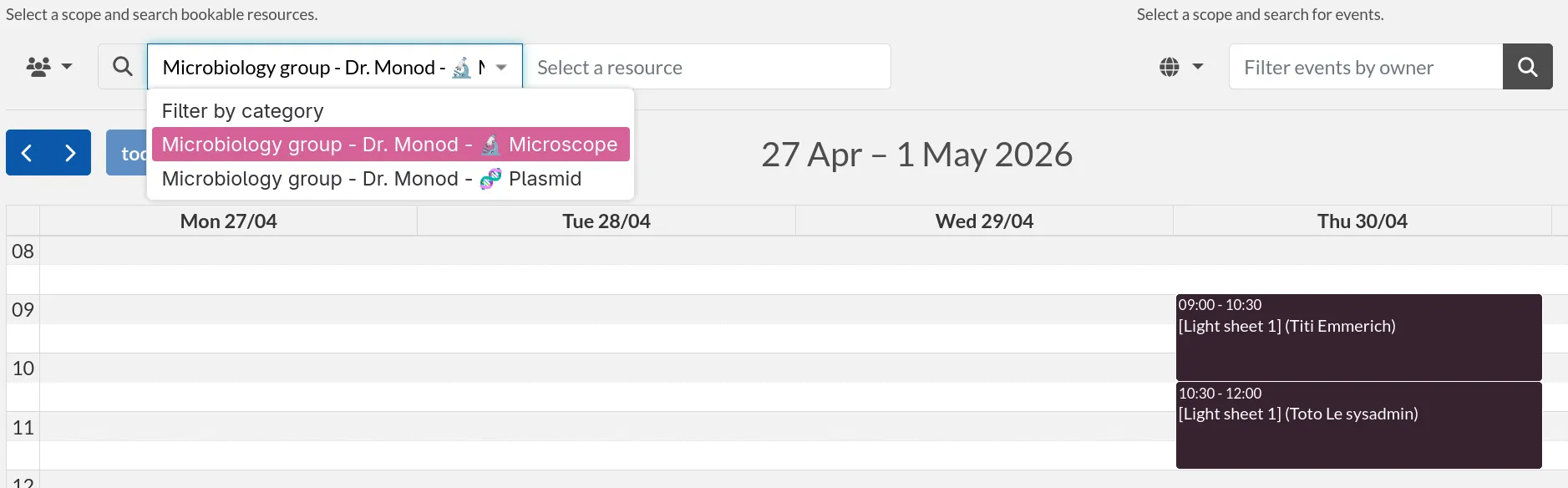
Select an item by typing its name in the search bar.
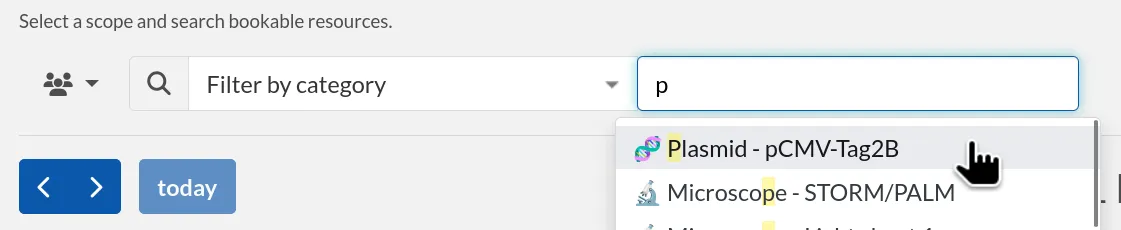
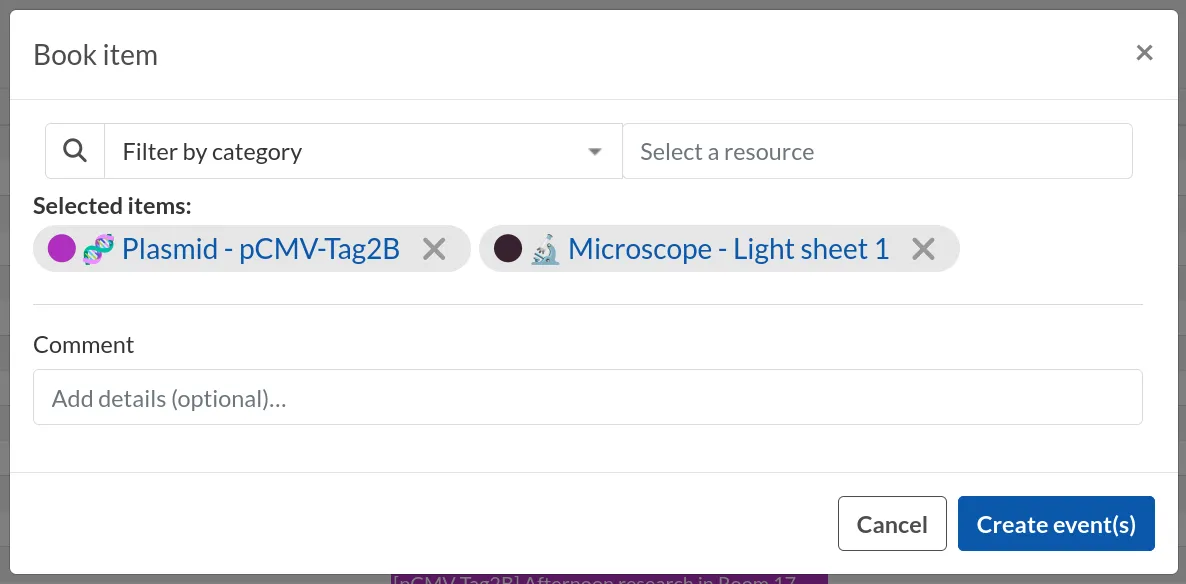
You can now drag-and-drop a slot, confirm the "Title" of the event and click the Create event(s) button. You can select multiple resources to create many events at the same time.
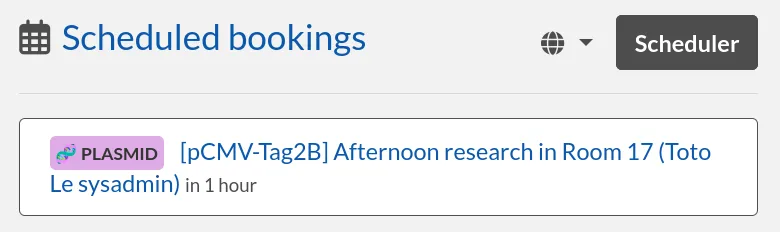
Once created, you will be able to see a list of your scheduled bookings in the main page (dashboard).
Events
On the scheduler page, the items listed are called Events. Clicking an existing slot displays a modal window with different information:
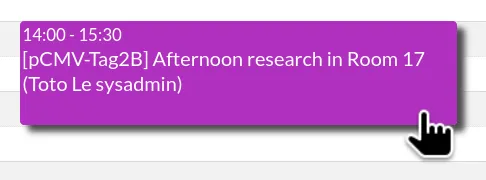
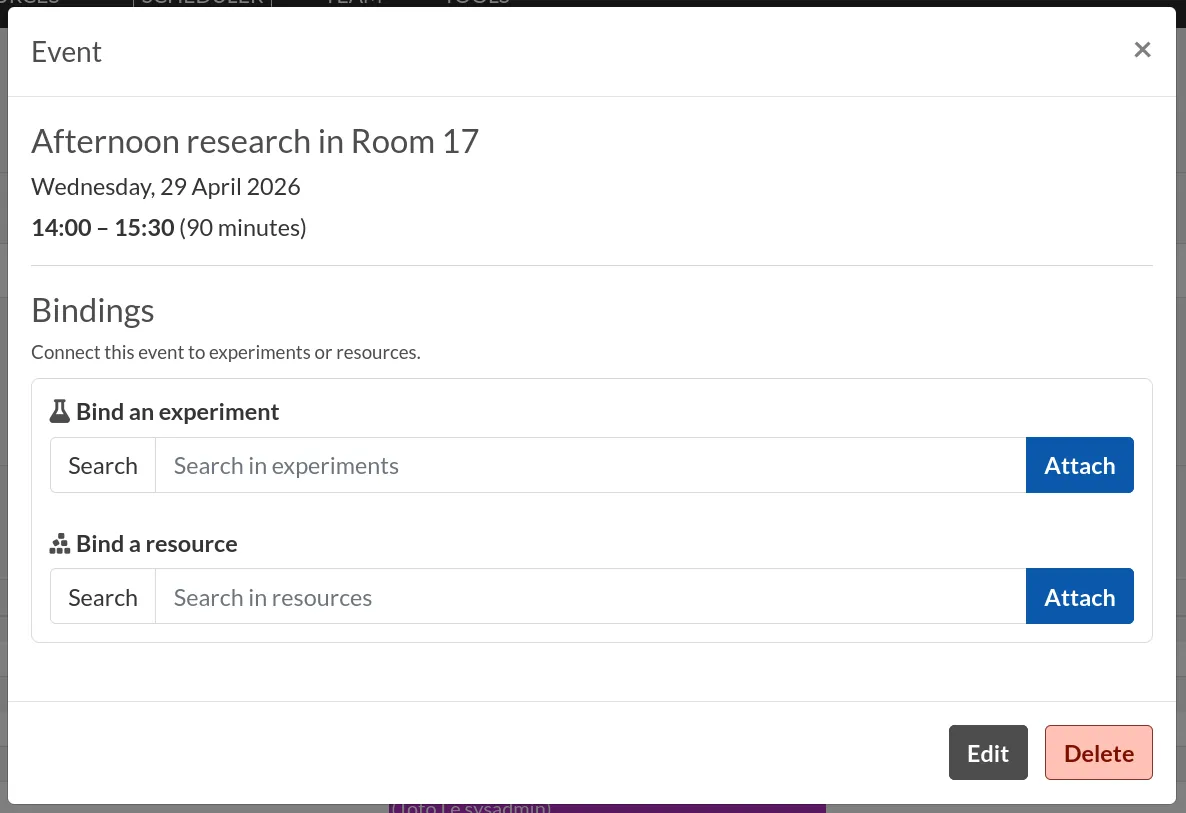
The first line indicates the Title (or Comment) of the event. It is defined by the user when creating or editing the event.
Below are the date of the event, the time slot, and the duration in minutes.
Recurring events
Enable Repeat when creating a booking, then choose whether it repeats every period, every other period, or at a custom interval. Bookings can repeat daily, weekly, or monthly. Weekly bookings can use the booking day, two days in the week, weekdays, or a custom selection of weekdays. A recurring booking can end after a chosen number of occurrences or on a chosen date, with up to 100 reservations over a period of up to 10 years.
A monthly recurrence is rejected if its day does not exist in one of the requested months (for example, January 31 followed by February).
Every occurrence is a normal reservation. Before creating or changing a recurrence, eLabFTW checks every occurrence for resource permissions, booking limits, and conflicts. If one occurrence is invalid, none of its occurrences are changed.
Bindings
You can bind the slot to an experiment or a resource. Start typing on the "Search" textbox and select the entry you wish to relate to this event.
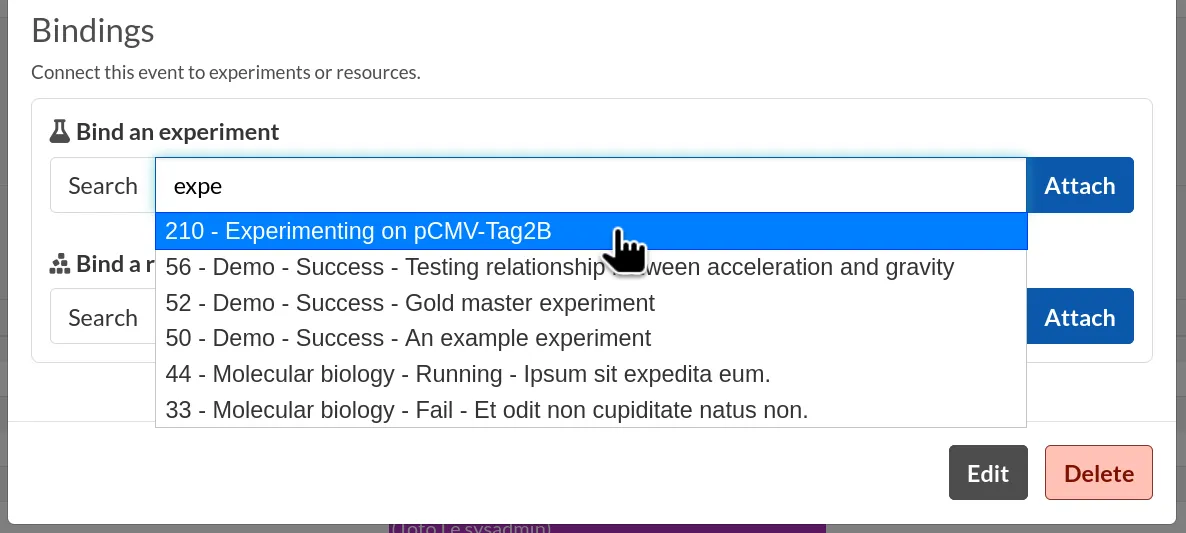
You can then view or unbind the entry.

Edit an event
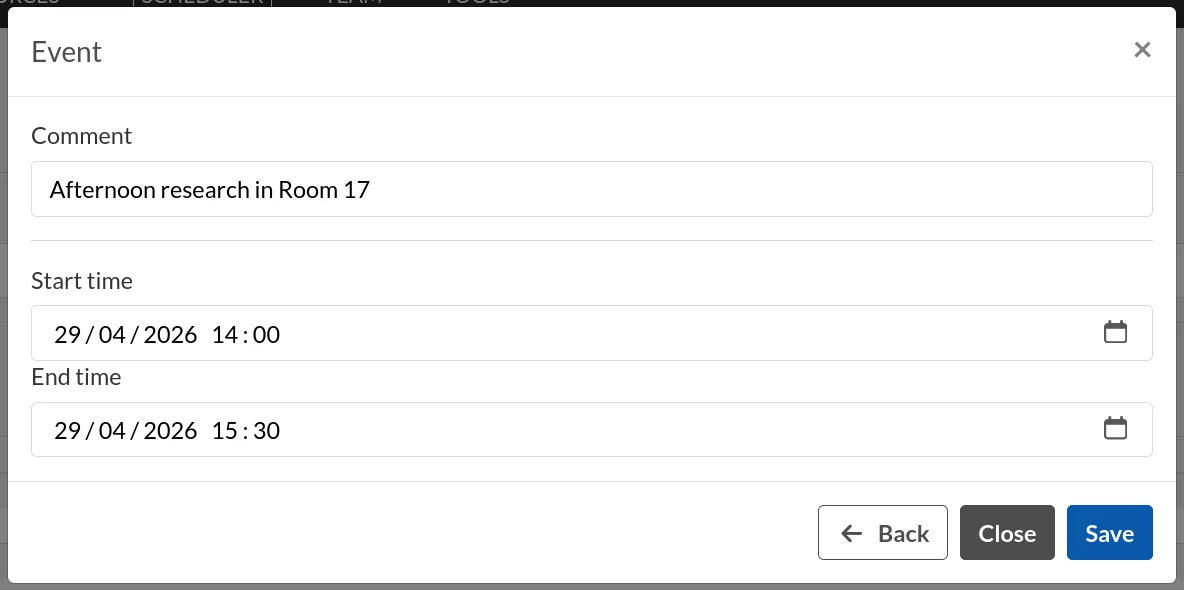
Click the Edit button to edit an event. You can modify its title and starting/ending hours.
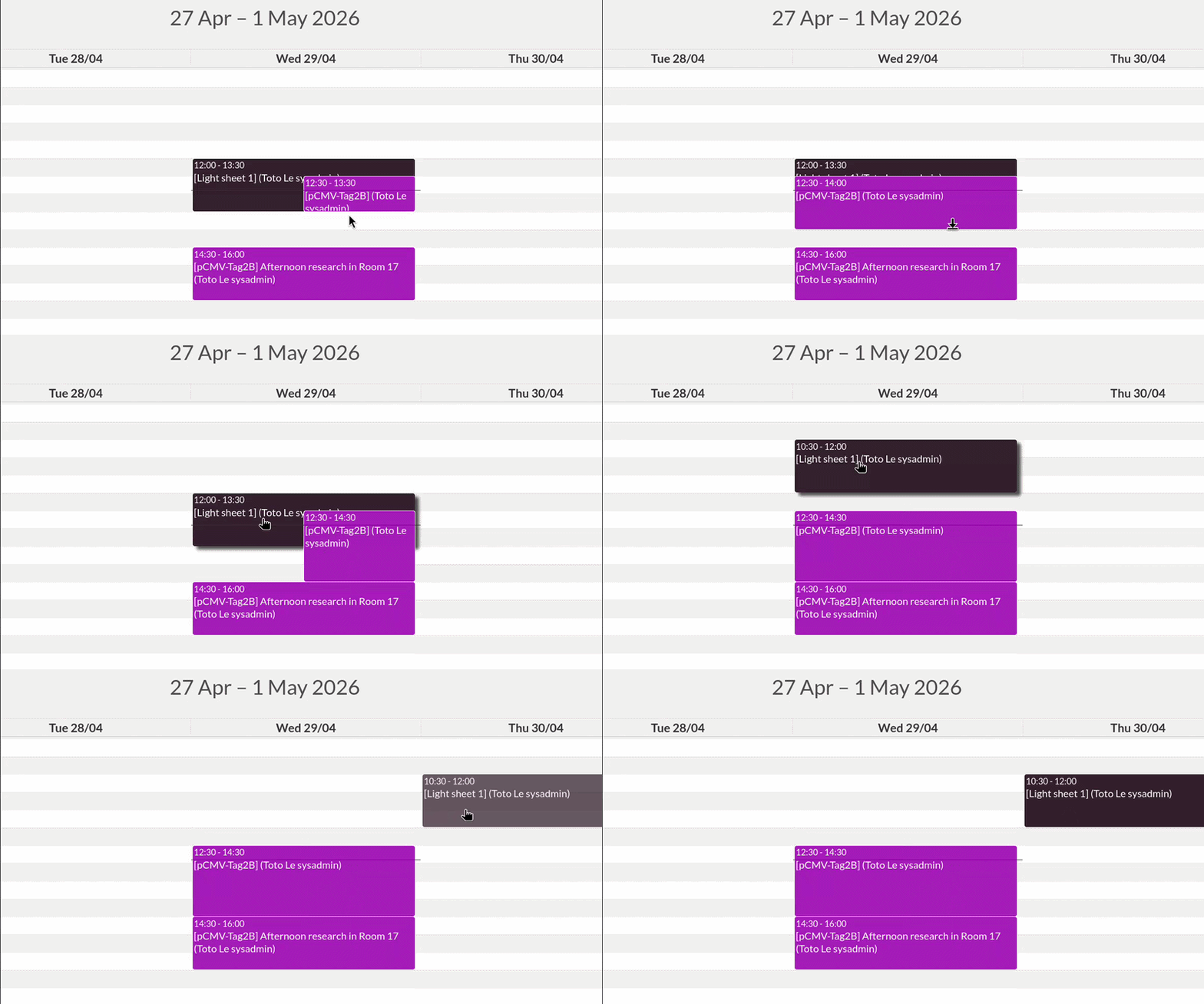
In the scheduler page, you can update an event with the following actions:
- Drag-and-drop: Move the event to the desired start time.
- Drag (by the end): Move only the ending hour of the event.
Cancel an event
Click the Cancel button to cancel an event.
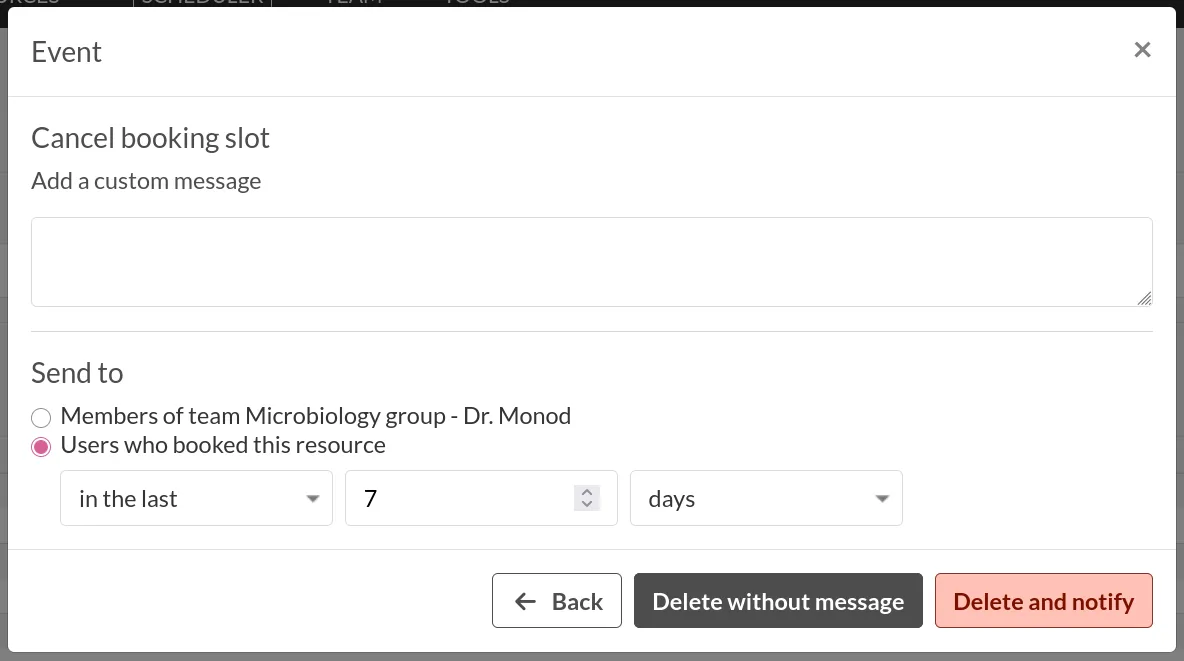
You can add a custom message to inform the team members who are connected to this event. You can either send to Members of the team or to a list of users who booked this resource in a specific time range.
When editing or deleting a recurring reservation, you can choose whether the action applies:
- only to that reservation,
- to that reservation and all future reservations,
- or to the complete recurrence.
Dragging or resizing a reservation in the calendar changes only that occurrence, not the complete recurrence.
Browse events
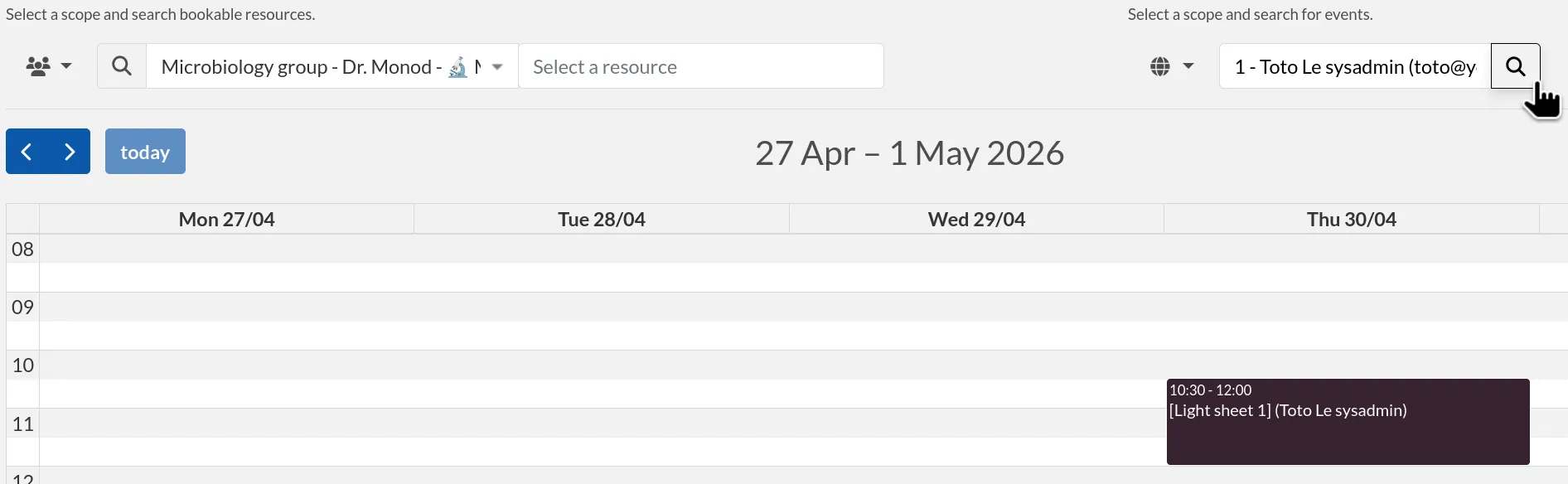
You can use the filters to reduce clutter on the scheduler view and look for specific events.
Adjusting permissions
When a Resource is bookable, a new permission appears: "Can book":
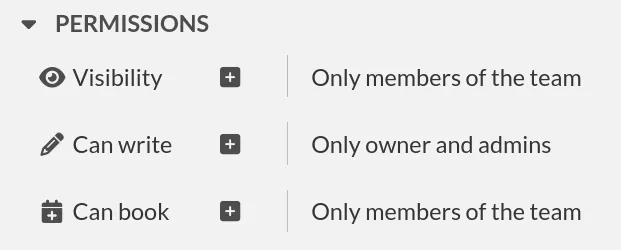
By default, it will match the Visibility permission of the entry, but it can be adjusted to fine-tune who exactly has access to this Resource for booking it.
Archiving and deleting resources
Resources can be archived or deleted just like experiments. The behavior is the exact same. See Archival section.