Compounds
A chemical compounds database is available to all users in all teams, it is a common database for the instance, storing references of all existing compounds. Each compound has its own read and write permissions, see Permissions of a compound: by default, a new compound is visible to the members of your team only. You can access it from the Tools menu.
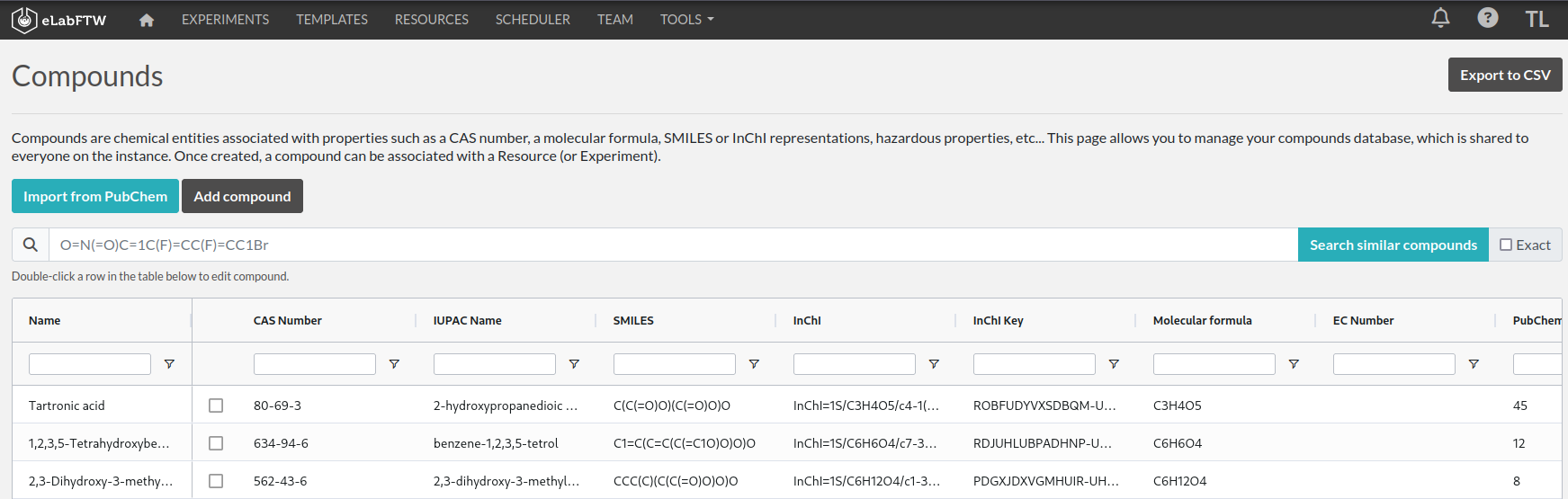
Compounds have specific properties such as a CAS number or a SMILES/InChI representation. They can also be associated with safety risks. Once a compound is present in the local eLabFTW database, it can be referenced (linked) from an Experiment or a Resource.
Importing a compound from PubChem
Compounds can be imported from PubChem. From the Compounds page, click the "Import from PubChem" button, you are presented with a modal window:
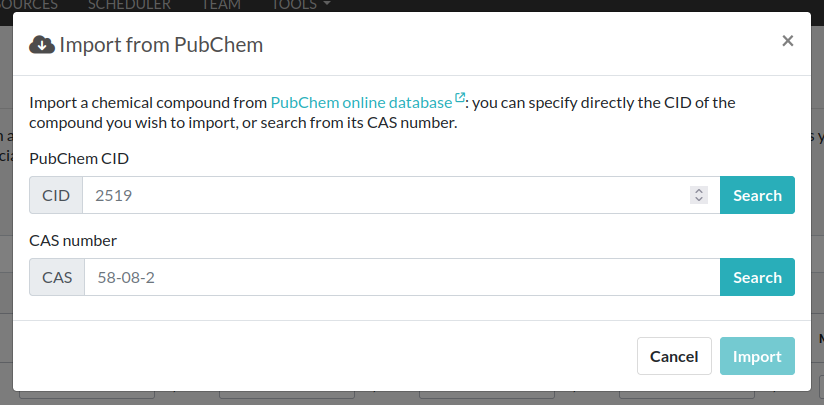
You can specify a PubChem CID (a unique identifier for all compounds present in PubChem), or a CAS number (a unique identifier present for most compounds). Input the number (CID or CAS) and click Search. A preview of the data is displayed below. If that is the correct compound, click Import.
Your newly imported compound is now visible in the table listing them all. Double-click it to further edit its properties.
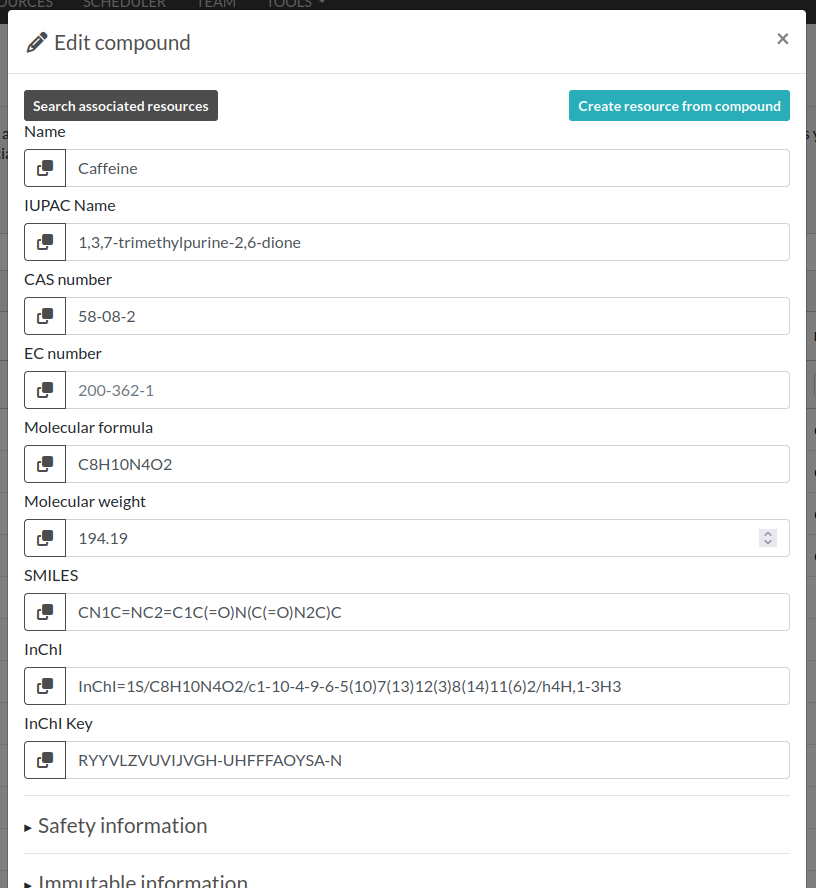
From this window, you can edit all the properties of the compound. Only the "Name" is a mandatory field, all other fields are optional.
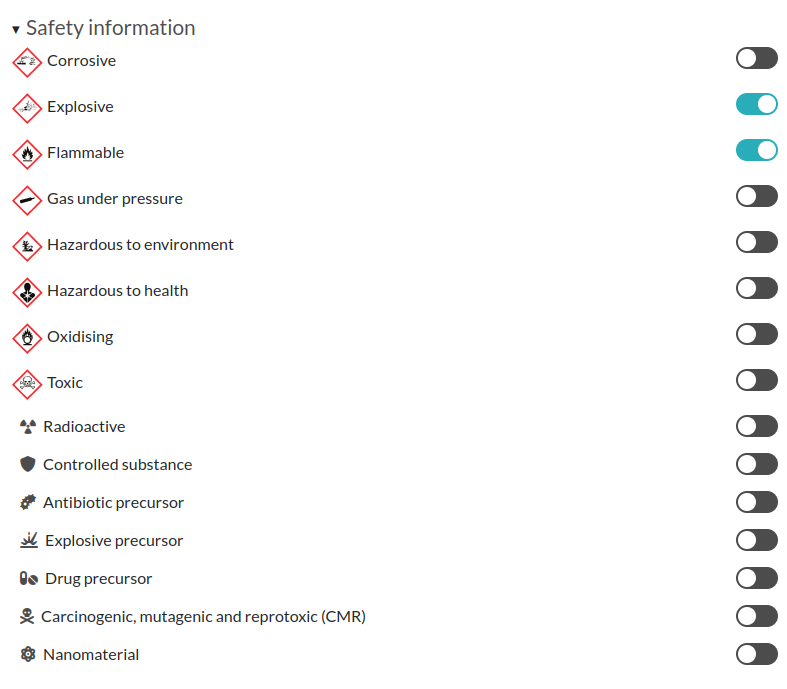
The safety section allows you to define health hazards associated with that compound, and also if it is a controlled substance such as a drug precursor, or nanomaterials.
Hazard and precautionary statements
The safety section also holds the GHS signal word ("Danger" or "Warning") and the hazard (H and EUH) and precautionary (P) statements of the compound. Type a code or a few words in the field below the lists to add a statement: it is saved right away. Click the cross next to a statement to remove it.
When a compound is imported from PubChem, its signal word and statements are imported too. PubChem gathers the classifications reported by several sources, such as the notifications to the ECHA C&L Inventory, so the list can contain statements that do not apply to the product you have. Check them against the safety data sheet of your supplier, and remove what does not apply. Importing the compound again adds the statements of PubChem back, but never removes any.
The texts of the statements are the English ones of the EU CLP regulation, and of the UN GHS for the codes that are not part of CLP. Withdrawn statements are kept on compounds that already have them, but cannot be added by hand anymore.
The signal word and the full text of the statements are shown with the compound on the Experiments and Resources linked to it, and in their PDF exports.
Now that your compound is correctly created, you can click the "Create resource from compound" button on top of this modal window to create a Resource linked with that compound. That resource can be seen as an instantiation of this abstract compound that is present in this common, shared compound database.
With a Resource, you can set permissions and also add more information, attach files, define inventory, and link to other Resources or Experiments.
A Resource (or an Experiment) can be linked to one or several existing Compound, which allows you to create a Resource representing a mixture of compounds.
Creating a compound manually
Maybe you've just created an never-seen before chemical compound, which means you cannot import it from PubChem. In this case, click the "Add compound" button to manually add a compound. Before adding it, you can choose who can see and modify it, see below.
Permissions of a compound
Like an entry, each compound has read and write permissions: a base (team members, owner and admins…) on top of which teams, user groups or users can be added. Click the Permissions button of the compound window to change them, or of the "Add compound" and "Import from PubChem" windows to choose them before the compound is added. By default, a compound imported from PubChem is visible to and modifiable by everyone with an account: it is public data, and a compound can only be added once on the instance. A compound added manually is often sensitive: by default it is visible to the members of your team, and can be modified by you and the Admins of your team, like an experiment. The compounds added before this feature are visible to and modifiable by everyone with an account.
A compound you cannot read is not listed in the compounds database, nor in the compounds linked to an entry, and you cannot link it to an entry. The identifiers of a compound (CAS number, InChIKey, PubChem CID…) are unique on the instance: adding a compound that already exists gives you the existing one if you can read it, and is refused otherwise.
When the instance restricts the edition of compounds to some users, these permissions apply on top of that restriction.
Importing compounds manually
Look at the Import compounds through CLI section to learn how to import your compounds from a spreadsheet file or through the API.
Fingerprints
When you add a compound where the SMILES representation is defined, and if the instance is configured to use the Fingerprinting service, a fingerprint of the compound will be stored in the database, allowing the search for substructures.
Chemical structure editor
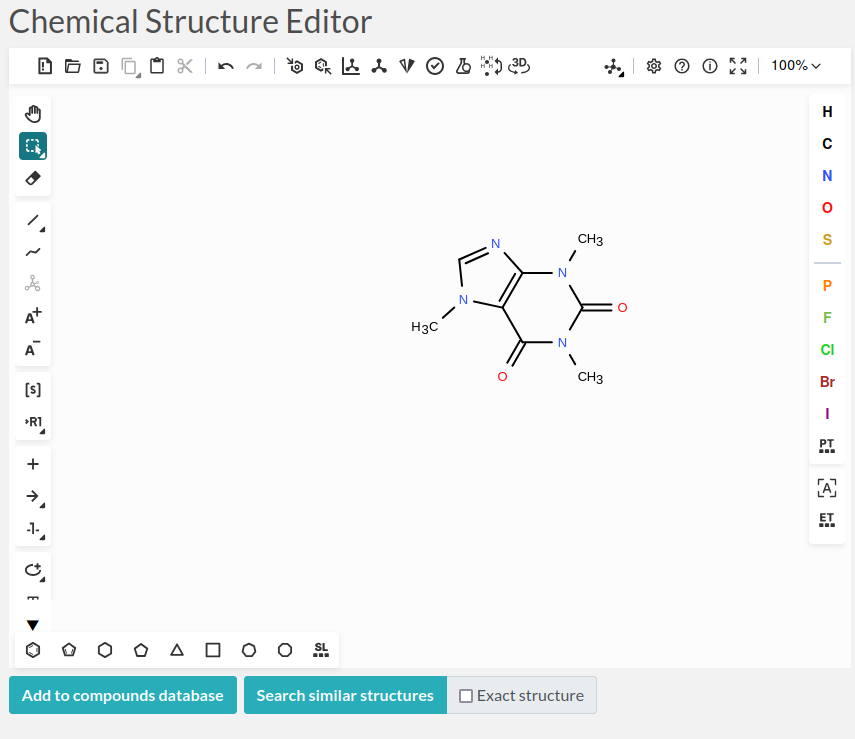
A chemical structure editor is available while editing experiments, resources and their templates, in the Reactions tab of the Main section (it was in the Tools menu before). It allows one to draw molecules and perform operation on them such as searching the compounds database for similar molecules, via a substructure search, or adding a structure to the compounds database. The substructure search requires the compounds present in the common database to be associated with a fingerprint, which is the case if the fingerprinting service is active, and the compounds have a SMILES representation defined.
For detailed instructions, click the (?) icon at the top of the editor.
Recording reactions in an entry
The chemical editor shares its place with the main text: use the tabs above the main text to switch to Reactions. The selected tab is remembered, so other entries open on the same view. Draw or load a reaction with one arrow, then click Create reaction. Review the detected reactants, products and reagents, enter a title, and save the reaction. Saving an editor attachment alone does not create a structured reaction record.
In view mode, the reactions are in the Reactions tab of the Main section, next to the main text. On the Experiments and Resources pages, opening an entry of the list also shows its reactions under its main text.
The reaction table stores the chemical structures and properties locally in the entry. Known structures are matched to existing Compounds using their InChIKey. Novel structures are not automatically added to the shared Compounds database. Later edits to a Compound do not change an existing reaction's calculations.
Use Properties and links to set molar mass, purity, density, stock molarity and stoichiometric coefficients, or to link a Compound or a particular Resource (bottle, batch or sample). Additional reagents, catalysts and solvents can be added to the table even when they are not drawn in the scheme. Linking a Resource does not consume stock or change its inventory record.
Planning and recording quantities
Planned quantities and actual quantities are independent. Choose the quantity you entered: mass (g or mg), volume (mL or µL), or amount (mol or mmol). Planned quantities can also be expressed in equivalents. The other quantities are calculated without overwriting the entered value. Unknown values remain blank.
For neat materials, calculations use molar mass, purity and density. For stock solutions, select Solution and enter the stock molarity. A volume is converted to amount using that molarity. Converting a solution's mass also requires its density. Purity is not applied a second time to the stock molarity.
Select the reference material defining 1 equivalent separately from the yield basis, normally the limiting material. Isolated product yield is calculated from actual amounts and stoichiometric coefficients. The application does not infer the limiting material or the balanced equation from the drawing. Missing amounts or a missing yield basis leave yield blank.
Editing and preserving reactions
Use Edit on a registered reaction to modify its table and conditions. To change its drawing, load it into the editor, make the change, open its reaction form, and choose Use current editor drawing. Matching molecular occurrences keep their quantities; changed structures are new components. Review the table before saving. Changing the standalone editor canvas does not automatically change a registered reaction.
Reactions inherit their entry's permissions and locking. Duplicating an entry or creating one from a template copies its reactions independently, including their recorded quantities. Reactions appear in view mode, PDFs, JSON exports and ELN archives. ELN import preserves local structures and quantities but clears links to installation-specific Compound and Resource IDs.
Each save or deletion of a reaction records an immutable snapshot on the instance, so the history of a reaction is kept even after it is deleted. This history is not available to anonymous users. Like the revisions of the entry body, it stays on the instance where it was recorded: ELN archives contain the current reactions only, and an imported reaction starts a new history.
Searching reactions
On the Experiments and Resources pages, click Search reactions below the search bar. The entries listed are the ones with a reaction matching all the criteria entered, combined with the other filters of the page (category, owner, tags, scope…). Deleted reactions are not searched.
- Reaction or component: text found in the title, conditions or atmosphere of a reaction, or in the name or molecular formula of one of its components.
- Structure: a SMILES finds the components containing this substructure.
The search compares structural fingerprints, like the compounds substructure
search, so a few results can contain a similar structure only. An InChIKey
finds the same molecule, including its other stereoisomers or protonation
states. Check Exact structure to find only the identical structure.
Select SMARTS in front of the field to enter a SMARTS pattern instead,
for instance
[OX2H]cfor the components with a phenol group. The pattern is matched exactly, without fingerprint screening. When too many components are candidates, the search asks you to select a role or add other criteria. - Role: only look for the structure among the reactants, products, reagents, catalysts or solvents.
From a reaction, click Find experiments with the same reaction to list the experiments with the same reactants and products, whatever the reagents, catalysts, solvents or conditions. Each component with an InChIKey also has a search icon to find the experiments using this compound.
When a reaction is saved, eLabFTW stores a reaction SMILES
(reactants>agents>products), a key identifying its transformation, and a
fingerprint of each component structure. A structure that cannot be
fingerprinted is still saved, but a substructure search cannot find it; a
Sysadmin can compute the missing fingerprints with
bin/console reactions:fingerprint. The transformation key is only computed
when every reactant and product has an InChIKey.
The first implementation supports one transformation per reaction record. Multi-stage reactions, screening matrices, analytical yields and automatic stock consumption require additional models and are not inferred from a drawing.